 EMZETT.
UEFI
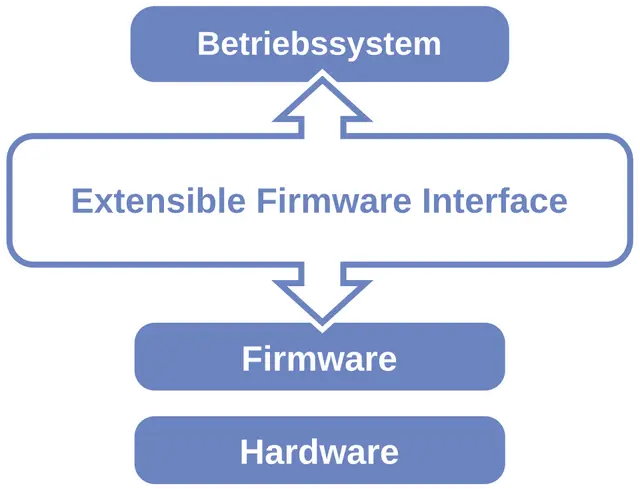 Image: Msikma, Public domain, Wikimedia Commons

In short: “Unified Extensible Firmware Interface” — the modern successor to BIOS, with a graphical interface, mouse support, and support for larger hard drives.
In more detail: UEFI resolves technical limits of the old BIOS (e.g. boot drives limited to a maximum of 2 TB) and brings Secure Boot, which checks the bootloader’s digital signature at startup, to prevent malware from loading before the operating system. Almost all PCs sold since around 2012 use UEFI instead of classic BIOS.
In Depth
While classic BIOS ran in pure 16-bit mode and addressed boot drives via an old partition table (MBR) with a hard 2 TB limit, UEFI uses the more modern GPT partition table (GUID Partition Table) with no such size restriction, and can independently load network drivers, file systems, and even simple diagnostic programs before an operating system even starts. The graphical UEFI interface with mouse support replaces the text-based BIOS menus, which could only be operated by keyboard.
Secure Boot, UEFI’s central security feature, cryptographically checks at system startup whether the bootloader (e.g. the Windows Boot Manager or GRUB on Linux) was signed by a trusted authority. If the signature is invalid or missing, the firmware refuses to boot — a protective mechanism against so-called bootkits, which nest themselves in before the operating system and would thereby bypass classic antivirus software. With some Linux distributions or dual-boot setups, Secure Boot has to be disabled or configured with additional signatures, since not every bootloader is signed by default.
UEFI firmware is also modular in design and can be extended via so-called UEFI applications — diagnostic tools, BIOS update programs, or recovery tools can be launched directly from the firmware, with no installed operating system at all.
Boot modes and compatibility
Most UEFI implementations also offer a “legacy” or “CSM” mode (Compatibility Support Module), which emulates classic BIOS behaviour — important for older operating systems or installation media that don’t support native UEFI booting. Pure UEFI booting (without CSM) is faster (no emulation overhead) and a prerequisite for Secure Boot, while legacy mode offers broader compatibility but none of the modern security benefits. When installing a new operating system, choosing the right mode is crucial — a Windows installation done in legacy mode can’t later be easily switched to UEFI mode without redoing the installation.
Practical access and configuration
Access to the UEFI settings is usually via a key press at system startup (often Del, F2 or F12, depending on the manufacturer), or, on modern Windows systems, directly from the operating system via the advanced startup options. Typical settings include the boot order (which drive to start from first), enabling Secure Boot, overclocking options for the CPU/RAM on suitably equipped motherboards, and virtualisation features (e.g. Intel VT-x/AMD-V), which have to be enabled to use virtual machines or certain security features.
See also: BIOS